How to Build a Homelab Server from Scratch: The Ultimate Guide
Sick of watching your monthly bills for cloud storage, web hosting, and media streaming creep higher and higher? Or perhaps you’re an IT professional or developer looking for a secure, isolated sandbox to test new deployments. Setting up a home data center elegantly solves both of these headaches, all while handing you total, unparalleled control over your own data.
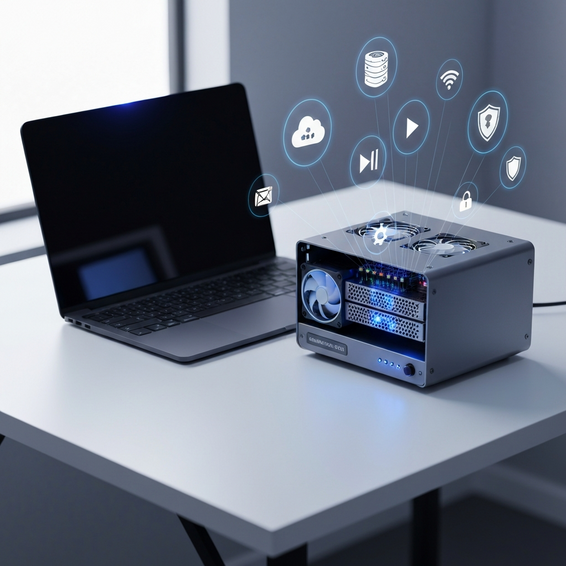
If you’ve been wondering exactly how to build a homelab server from scratch, you’ve definitely come to the right place. Standing up your own home server unlocks the ability to self-host essential apps, master advanced networking concepts, and spin up realistic enterprise environments without ever leaving your desk.
In this comprehensive guide, we’ll walk through the entire process together. From picking out the perfect hardware and installing a hypervisor to locking down your network security, we’ve compiled everything you need to kick off your homelab journey. We’ll even dive into the ideal software stack to help push your developer productivity to the next level.
Why the Cloud-Only Approach Falls Short
For years, the tech world’s default mantra has been to push absolutely everything to the cloud. While undeniable in its convenience, this cloud-first mentality has quietly created a few glaring problems for developers and tech enthusiasts alike.
For starters, the relentless recurring costs of cloud computing can add up astonishingly fast. Leaving a virtual machine, database, or Kubernetes cluster running 24/7 on AWS or Azure often leads to some major sticker shock at the end of the month. As your personal projects grow, your expenses inevitably skyrocket alongside them.
On top of the financial drain, leaning completely on third-party providers forces you to compromise your privacy. You’re effectively handing over your personal media, source code, and private data to massive corporations, leaving it all subject to their ever-changing terms of service.
Lastly, public cloud services abstract away the actual infrastructure. If your goal is to truly understand the nuts and bolts of networking, system administration, and virtualization, you genuinely need hands-on experience. Mastering exactly how to build a homelab server from scratch provides the ultimate playground to test your DevOps workflow—without the underlying dread of breaking a live production environment.
Quick Starts: Basic Hardware Solutions
Let’s clear up a common misconception: you absolutely do not need a massive, roaring, power-hungry enterprise rack just to get your feet wet. In fact, the smartest approach is usually to start small and scale up only as your needs evolve. Here are a few of the most practical hardware routes you can take when building out your home server:
- Repurpose an Old PC or Laptop: The single most budget-friendly way to begin is by breathing new life into hardware you already have lying around. A dusty old desktop packing an Intel Core i5 and 16GB of RAM is perfectly capable of handling basic self-hosted services. As an added bonus, repurposing an old laptop gives you an integrated screen and a built-in battery backup (UPS) right out of the box.
- Invest in a Mini PC: Compact machines like the Intel NUC, Lenovo ThinkCentre Tiny, or the Beelink series have become incredibly popular within the homelab community. They pack a surprisingly high core count into a tiny footprint, all while keeping power consumption and fan noise to an absolute minimum.
- Used Enterprise Gear: Craving that authentic data center experience? Start hunting for refurbished enterprise hardware like a Dell PowerEdge (such as the R730) or an HP ProLiant server. While they deliver massive RAM capacities and high-end features like iDRAC/iLO management, you’ll need to brace yourself for noticeably higher electricity bills and serious fan noise.
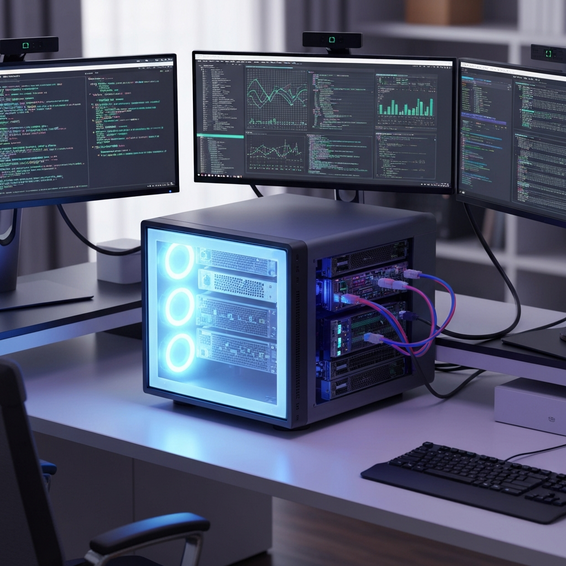
- Custom Whitebox Build: Piecing together a server from standard consumer PC parts lets you hand-pick the exact CPU, motherboard, and storage configuration for your specific use case. It perfectly bridges the gap between raw performance, manageable noise levels, and future upgradeability.
Advanced Solutions: Virtualization and Software Stacks
Once you have your shiny new hardware plugged in and ready to go, it’s time to choose an operating system. Instead of slapping on a standard copy of Windows or Ubuntu Desktop, seasoned IT professionals generally opt for Type-1 Hypervisors. This specialized software allows you to efficiently slice up a single physical server into multiple independent Virtual Machines (VMs) and containers.
- Install Proxmox VE: As a free, completely open-source virtualization platform, Proxmox is a community favorite. Simply flash the ISO to a USB drive using a tool like BalenaEtcher, boot up your server, and click through the intuitive installation wizard. Once you’re up and running, you can manage your entire digital empire through a sleek, web-based interface.
- Deploy Linux Containers (LXC): Rather than bogging down your system with full, resource-heavy VMs for every little app, you can use Proxmox to deploy lightweight LXC containers. Because they share the host’s kernel, these containers sip just a tiny fraction of the CPU and RAM that a traditional VM would require.
- Docker and Kubernetes: Need to run microservices? Deploy Docker right inside your virtual machines. For the more advanced DevOps practitioners out there, spinning up a lightweight local Kubernetes cluster (like K3s) creates an incredibly robust platform for testing container orchestration.
- Network Attached Storage (NAS): You can easily run TrueNAS Scale as a virtual machine, utilizing PCIe passthrough to give it direct access to your physical hard drives. This brilliant setup grants you enterprise-grade ZFS storage seamlessly integrated directly into your homelab environment.
Homelab Best Practices for Optimization and Security
Bringing a server online within your home network naturally introduces a few unique technical challenges. Sticking to these foundational best practices will help ensure your new setup stays fast, highly secure, and reliable around the clock.
- Implement Network Segmentation: Whatever you do, try to avoid dropping your homelab onto the exact same network as your smart TVs and mobile phones. By utilizing a managed switch and a highly capable router (such as OPNsense or pfSense), you can carve out separate VLANs to isolate your management interfaces, guest networks, and chatty IoT devices.
- Secure Remote Access: It can be tempting, but never expose your server’s SSH or admin web ports directly to the open internet. Instead, take the time to configure a secure, private VPN connection using modern tools like WireGuard or Tailscale.
- Use a Reverse Proxy: If you absolutely must expose certain web applications to the outside world, always route them through a reverse proxy like Nginx Proxy Manager or Traefik. You can then automatically secure those endpoints using free SSL certificates generated by Let’s Encrypt.
- Follow the 3-2-1 Backup Rule: Hard drives will eventually fail; it’s just a matter of time. Protect yourself by keeping three separate copies of your data, stored across two different media types, with at least one copy housed safely off-site. Tools like Proxmox Backup Server or TrueNAS make it remarkably easy to configure robust, automated snapshots.
Recommended Tools and Resources
To help smooth out your deployment process, we strongly suggest weaving a few proven tools into your software stack. Taking the time to explore these self-hosted tools will drastically elevate your overall home network experience.
- Portainer: An incredibly intuitive, powerful web interface designed to take the headache out of managing your Docker containers, networks, and images.
- Pi-hole or AdGuard Home: Looking for network-wide ad blocking and custom DNS management? These tools automatically block pesky ads and trackers across every single device connected to your Wi-Fi.
- Nextcloud: Think of this as your very own, totally private alternative to Google Drive or Dropbox. It seamlessly syncs your files, calendars, and contacts without handing your data over to a tech giant.
- Uptime Kuma: A fantastic self-hosted monitoring dashboard that instantly alerts you the moment any of your critical services happen to go offline.
- Home Assistant: Widely considered the ultimate open-source home automation platform, it runs absolutely beautifully inside a virtualized homelab environment.
If you’re planning to purchase new hardware to kick things off, definitely browse around reputable refurbished IT vendors first. Alternatively, a quick search on Amazon for reliable Mini PC brands like Beelink or Minisforum will reveal plenty of bite-sized machines offering phenomenal performance per watt.
Frequently Asked Questions (FAQ)
What is the best hardware for a beginner homelab?
If you’re just starting out, picking up a refurbished Mini PC—think along the lines of a Lenovo Tiny or a Dell OptiPlex Micro—is usually your best bet. Finding one configured with an Intel i5 processor, anywhere from 16GB to 32GB of RAM, and a snappy 1TB NVMe SSD strikes the perfect balance. You’ll get surprisingly snappy performance, an affordable price tag, and beautifully low power consumption.
How much does a homelab cost to run?
Operating costs depend heavily on the specific hardware you choose and your local utility rates. A modern Mini PC, for example, might only add about $10 to $20 to your yearly electricity bill. On the flip side, running a heavy, older 2U enterprise server 24/7 could easily rack up $200 to $500 annually. Because of this, it always pays to keep energy efficiency top of mind during your build.
Do I need enterprise hardware for a homelab?
Not at all! Unless your specific goal is to master the intricacies of enterprise-grade hardware management—such as configuring RAID controllers, wrangling SAS drives, or navigating out-of-band management interfaces—standard consumer hardware is more than sufficient for spinning up virtual machines and hosting Docker containers.
What services can I run on my home server?
Honestly, the possibilities are practically endless. Some of the most popular projects include setting up personal media servers like Plex or Jellyfin, securing credentials with Vaultwarden, keeping documents synced via Nextcloud, and orchestrating smart devices through Home Assistant.
Conclusion
At the end of the day, designing and building your own home data center remains one of the most deeply rewarding projects any tech enthusiast can tackle. It beautifully bridges the gap between reading about theoretical concepts and gaining practical, hands-on experience. Best of all, you take back absolute control over your digital environment, finally freeing yourself from the endless cycle of external subscription costs.
Throughout this guide, we’ve explored the essential hardware routes, unlocked the power of virtualization through Proxmox, and laid out the critical network security measures needed to keep your data locked down. Truly understanding how to build a homelab server from scratch does more than just eliminate recurring cloud fees—it fundamentally supercharges your practical IT skills. So start small, spin up those first few basic containers, and enjoy watching your self-hosted empire grow.
About the Author